
The short answer
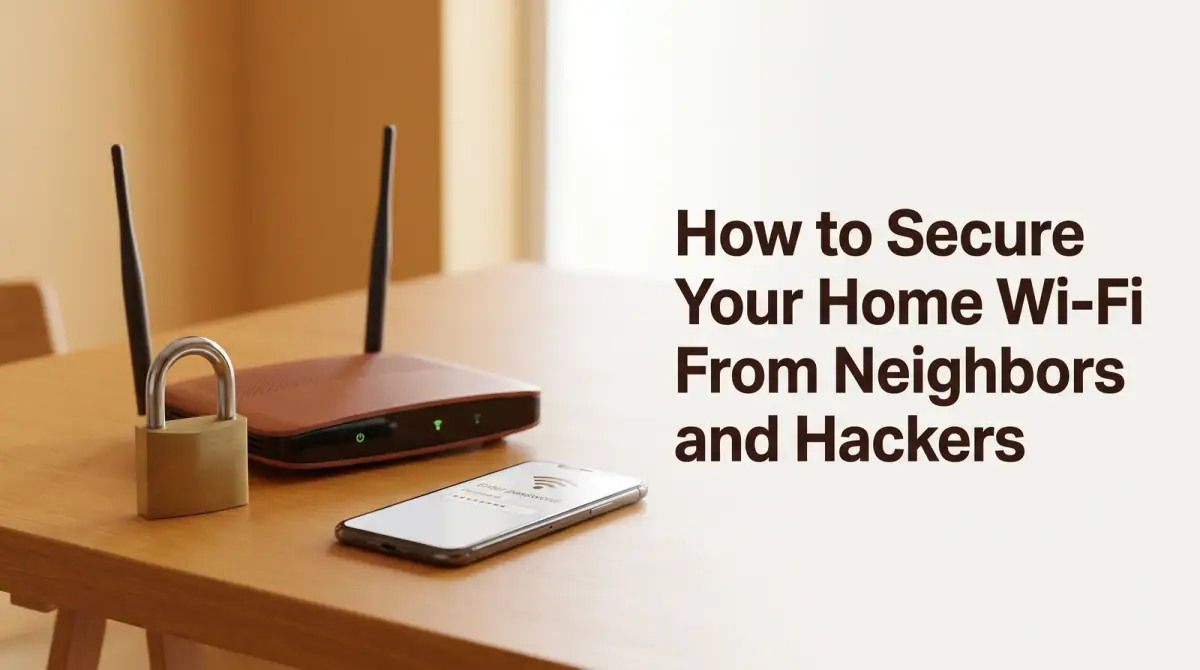
An open or weak network invites freeloaders and worse. Here is how to secure your home Wi-Fi with the router settings that actually keep neighbors and intruders off it.
- Change the router's admin login, not just the Wi-Fi password.
- Use a long, unique Wi-Fi password and the strongest encryption your router offers.
- Keep the router firmware updated to close known weaknesses.
- Check the list of connected devices to spot anyone who should not be there.
- A guest network keeps visitors and smart gadgets separate from your main devices.
Learning how to secure home wifi comes down to a handful of settings you can change in a few minutes: a strong unique password, modern encryption, an updated router, and a fresh admin login. Together these keep neighbors, freeloaders, and would-be intruders off your network. You do not need to be technical to do any of it.
Most home networks are left on their factory defaults, which is exactly what makes them easy to get onto. A few deliberate changes, however, move you well ahead of the average, poorly protected setup.
Here is the short version before we dig in:
- Change the router's admin login, not just the Wi-Fi password.
- Use a long, unique Wi-Fi password and the strongest encryption your router offers.
- Keep the router firmware updated to close known weaknesses.
- Check the list of connected devices to spot anyone who should not be there.
- A guest network keeps visitors and smart gadgets separate from your main devices.
Why securing your home Wi-Fi matters
An unprotected network is not just about a neighbor borrowing your bandwidth, though that alone can slow everything down. When someone is on your Wi-Fi, they are inside your local network, closer to your devices and the information moving across them.
A weak or open network can let strangers use your connection for things you would rather not have linked to your address, snoop on unencrypted traffic, or reach devices like printers and cameras. The goal here is not paranoia. It is simply closing the easy doors so your network is not the low-hanging fruit on the street.
The good news is that the same basic steps defend against both a curious neighbor and a more determined outsider, so a little effort goes a long way.
How to secure home wifi: start with the router login
The first move when you secure home wifi is to change the router's own admin username and password, which is separate from your Wi-Fi password. This login controls every setting on the device, yet it is the step most people skip.
Routers ship with default admin credentials that are often printed on a label or widely known online. If an intruder reaches that login, they can change your settings, lock you out, or quietly weaken your protection. Open your router's settings page, usually through a web browser or the provider's app, and set a strong, unique admin password right away.
While you are in there, take a moment to note where the key settings live, because you will come back for the next few steps.
Choose a strong Wi-Fi password
Good wifi password security starts with length and unpredictability. A short or common password is the single easiest way onto a network, so this is worth getting right the first time.
Aim for a long passphrase rather than a short, complex-looking word. A string of several unrelated words is both harder to crack and easier to remember than a random eight-character jumble. Avoid names, addresses, birthdays, and anything a neighbor could reasonably guess.
A few simple rules help:
- Make it long, favoring many characters over few.
- Keep it unique to your Wi-Fi and not reused from other accounts.
- Avoid personal details and standalone dictionary words.
- Change it if you ever shared the old one widely.
Once it is set, you rarely need to type it again, so there is little reason to keep it short.
Turn on the strongest encryption available
Encryption scrambles the traffic between your devices and the router so it cannot be easily read or hijacked. In your router settings, choose the strongest option your equipment supports, which today is usually labeled WPA3, or WPA2 if WPA3 is not available.
Older standards such as WEP are outdated and can be broken quickly, so avoid them whenever a newer option exists. Selecting modern encryption is usually a single dropdown in the wireless security settings, and it makes a real difference to how protected your traffic is.
If some older device refuses to connect after the change, it is worth checking whether that device can be updated rather than dropping the whole network back to weaker security for its sake.
Keep your router firmware updated
Router firmware is the software that runs the device, and manufacturers release updates to fix flaws that attackers could exploit. Running old firmware leaves those known gaps wide open, which is why updates matter as much as your password.
Many modern routers update themselves automatically, but it is worth confirming that setting is switched on. If yours does not, check for updates in the router settings every so often, or through the provider's app. This builds a secure wifi network that stays protected as new weaknesses come to light, rather than one that was safe only on the day you set it up.
A router that no longer receives any updates from its maker is worth replacing eventually, since unpatched flaws never get fixed on their own.
Spot and stop Wi-Fi theft
To stop wifi theft, you first need to see who is connected. Most routers offer a list of connected devices in their settings or app, showing everything currently using your network.
Look through that list and match each entry to a device you recognize, from phones and laptops to smart speakers and thermostats. If something appears that you cannot account for, treat it as a red flag. The quickest fix is to change your Wi-Fi password, which instantly disconnects every device and forces each of your own to reconnect with the new one.
Signs that someone may be piggybacking include unexpected slowdowns and unfamiliar device names. A strong password and modern encryption make this kind of theft far harder in the first place, so the earlier steps do most of the heavy lifting here.
Extra settings that harden a secure wifi network
Beyond the essentials, a few optional settings add useful layers to a secure wifi network without much effort.
Consider these:
- Set up a guest network for visitors and smart-home gadgets, keeping them separate from your main devices.
- Rename your network so it does not reveal your name, address, or router model.
- Turn off remote management if you do not need to reach the router from outside your home.
- Restart the router occasionally, which can clear minor issues and apply pending updates.
A guest network is especially handy. It lets you share internet access without handing over your main password, and it isolates less-secure smart devices from the computers and phones that hold your personal information.
The bottom line
In short, knowing how to secure home wifi is mostly about a few deliberate changes rather than any special expertise. Update the router login, set a long unique password, turn on modern encryption, keep the firmware current, and check who is connected from time to time. None of it takes long, and together these steps move your network well out of easy reach, so the freeloaders and snoopers simply move on to an easier target.

Comments
0 total